IC2 Configuration Migration Walkthrough.
In the recent InControl release, we added a new function called Config Migration. We can now apply a device configuration to another device of the same or a different model.
(A) NOTE:
a. Two main components: Source Config File and Target Config Device
b. Source Config File (SCFG) - The configuration will be obtained from this device, during migration, no changes will be made to this device.
c. Target Config Device (TCFG) - The configuration from SCFG will be applied to this device, the previous config on this device before migration will be overwritten.
d. X series models (except Balance 310X and MBX) are not supported yet.
e. Prerequisites
-
Firmware: SCFG and TCFG Must be at least 8.3.0 or above
-
Both SCFG and TCFG must be added to InControl 2 (IC2) and under the same IC2 Organization.
-
The TCFG must have at least 1 active WAN connected to the IC2 during the config migration process.
-
The SCFG doesn’t have to be online all the time, however, you must ensure the designated config has been uploaded on the IC2 Configuration Backup.
-
In both SCFG and TCFG, log into the Web GUI, go to System > InControl, and make sure the Controller option is set to “InControl”. This setting must be in the “Enable” state.
-
Please ensure you have disabled any existing IC2 provisioned settings on the TCFG (if any group-level configurations are in place) so that it won’t affect the config after migration.
(B) Supported Models
a. Source Config File (SCFG) Models:
Balance Series
- Peplink Balance 210 (HW4,5)
- Peplink Balance 30 LTE (HW3)
- Peplink Balance 310X
- Peplink Balance 380 (HW3-5)
- Peplink Balance 380 (HW6)
- Peplink Balance 710 (HW3)
MAX Series
- Pepwave MAX HD2 (HW5,6)
- Pepwave MAX HD2 (802.11ng) IP67 (HW2)
- Pepwave MAX HD2 IP67 (HW2)
- Pepwave MAX HD2 LTE IP67 (HW2-5)
- Pepwave MAX HD2 MBX
- Pepwave MAX HD2 MBX with MediaFast
- Pepwave MAX HD4 MBX with MediaFast
SOHO Series
- Pepwave Surf SOHO MK3
- Peplink Balance One Core
- Peplink Balance Two
- Peplink B One Plus
- Peplink B One
- Peplink B One 5G
b. Target Config Device (TCFG) Models:
Balance Series
- Peplink Balance 310X
- Peplink Balance 380 (HW3-5)
- Peplink Balance 310 5G (HW1,2)
- Peplink Balance 310 Fiber 5G (HW1,2)
- Peplink Balance 380 (HW6)
- Peplink Balance 580 (HW3)
- Peplink Balance 710 (HW3)
- Peplink Balance 1350 (HW2)
- Peplink Balance 2500 (HW1)
- Peplink Balance 2500EC (HW1)
MAX Series
- Pepwave MAX HD2 MBX
- Pepwave MAX HD2 MBX with MediaFast
- Pepwave MAX HD4 MBX with MediaFast
- Pepwave MAX HD4 MBX
SOHO Series
- Pepwave Surf SOHO MK3
- Peplink Balance One
- Peplink Balance One Core
- Peplink B One Plus
- Peplink B One
- Peplink B One 5G
- Peplink Balance Two
(C) Steps to migrate the configuration to another device in IC2:
Step 1:
Ensure both devices (SCFG & TCFG) are within the same org under IC2, in this case, we will migrate the config from Surf SOHO-MK3 (SCFG) to a different model B One 5G (TCFG).
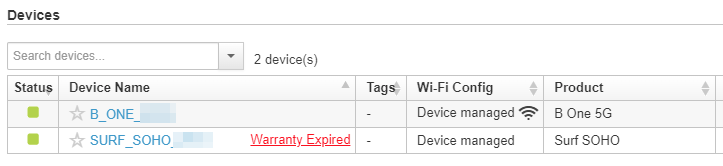
Step 2:
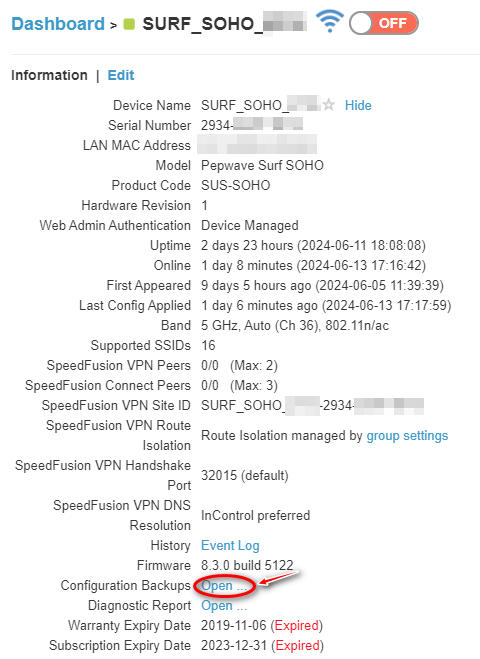
On the SCFG Device Details page, click the ‘Show All’ button to expand
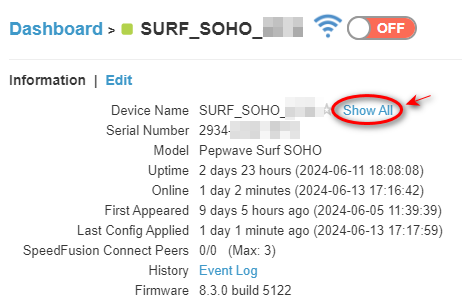
Step 3:
Click to Open the [Configuration Backups]
Step 4:
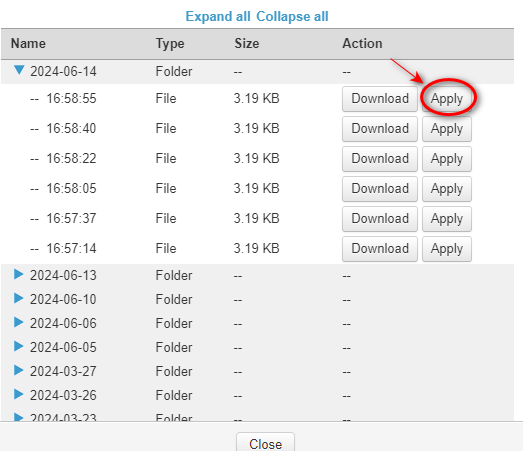
Select the config backup that you want to migrate to TCFG, then click the Apply button
Step 5:
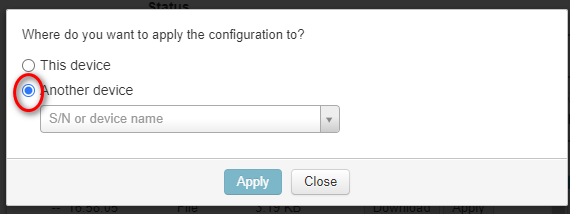
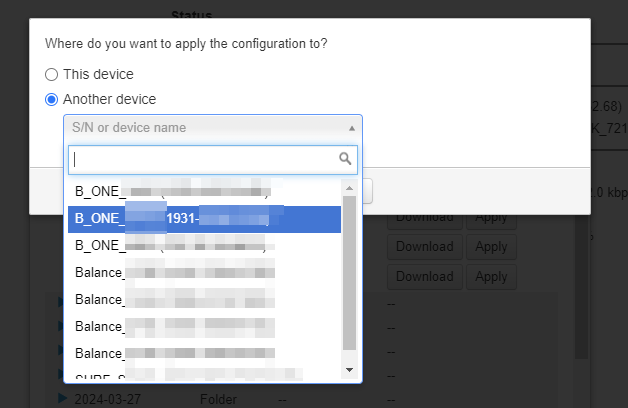
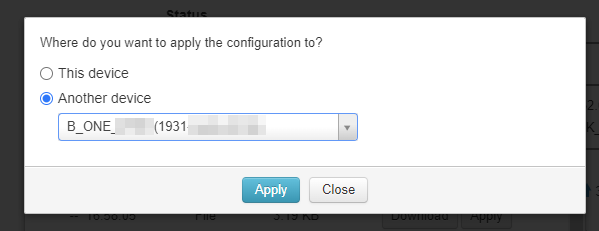
Select ‘Another device, then it will appear a list that includes all available devices. Select the TCFG from the list and press ‘Apply’.
Step 6:
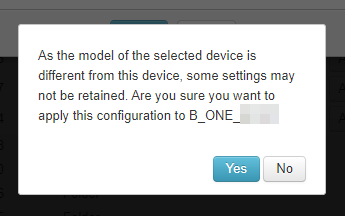
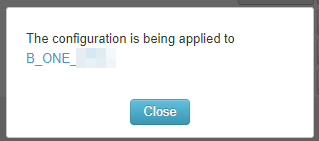
Confirm the Device is correct and press ‘Yes’, it will pop up configuration is being applied.
(D) Verification
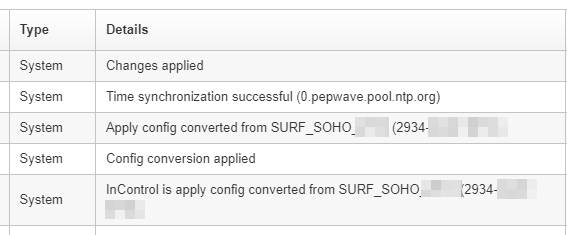
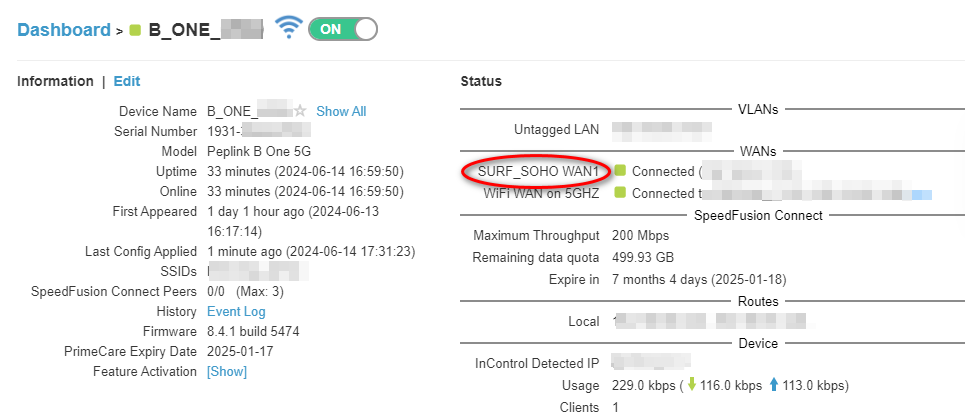
If the migration is successful, after a few minutes, you might go to the TCFG event log page under IC2, and these logs should appear, eg. “Config conversion applied”. In our case, the WAN name (SURF_SOHO WAN1) we set in SCFG has been applied to TCFG.