This guide walks you through updating your cellular module firmware directly through the router’s admin panel.
Before you begin: Confirm a reliable secondary WAN connection is available. Do not perform this update over a cellular connection.
Step 1: Connect to the Admin Panel
Access the router’s web admin locally via browser, or remotely via InControl2’s Remote Web Admin.
Step 2: Navigate to the Support Page
Once logged in, look at the address bar. You’ll see something like:
Local device UI:

Remote Web Admin:

Replace “index” with “support” and press Enter
Local device UI:

Remote Web Admin:

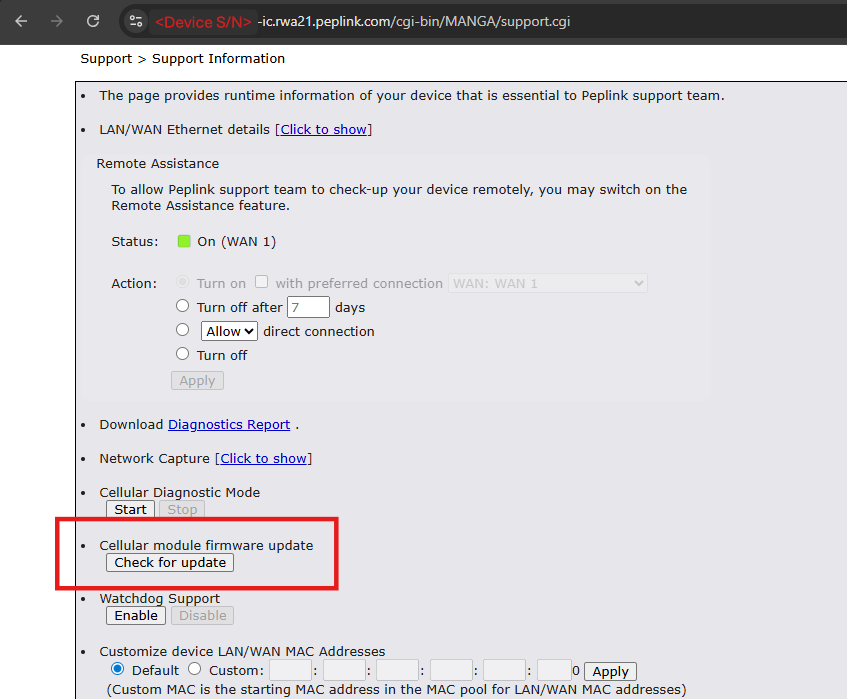
Step 3: Check for Cellular Firmware Update:
Click “Check for Update”
Step 4: Apply the Update
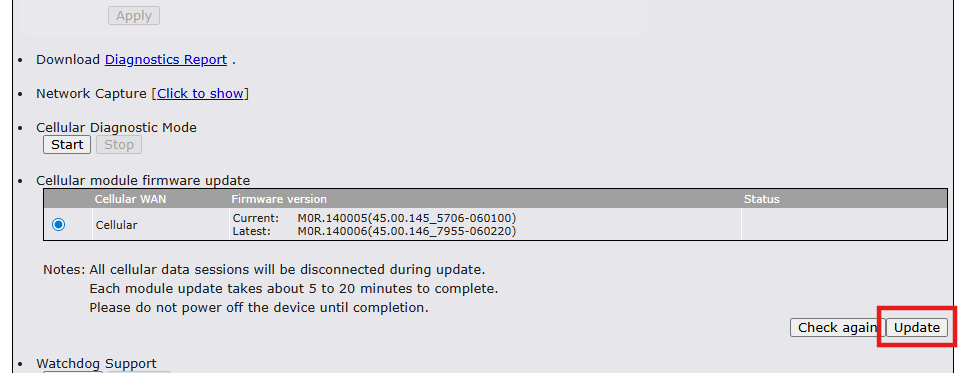
The update will take 5-20 minutes. Please keep the device powered on.