We had a situation that we need manually update Starlink firmware after the 1-Dec-2025 updates.
We follow the instruction “Update Starlink via 3rd party router” and set up a wifi on Peplink, connect phone to the wifi and we can reach the “Update now” on Starlink APP. However, after click it, the phone jump back to Wifi connection page and Starlink APP shows not connected to any wifi. However on the phone, it shows connected to the wifi.
It feels like Peplink router blocked the updates from phone to Starlink?
We have tried below:
on the WAN setting, check or uncheck the Starlink.
put Starlink on first priority, and even disable the other WAN connections.
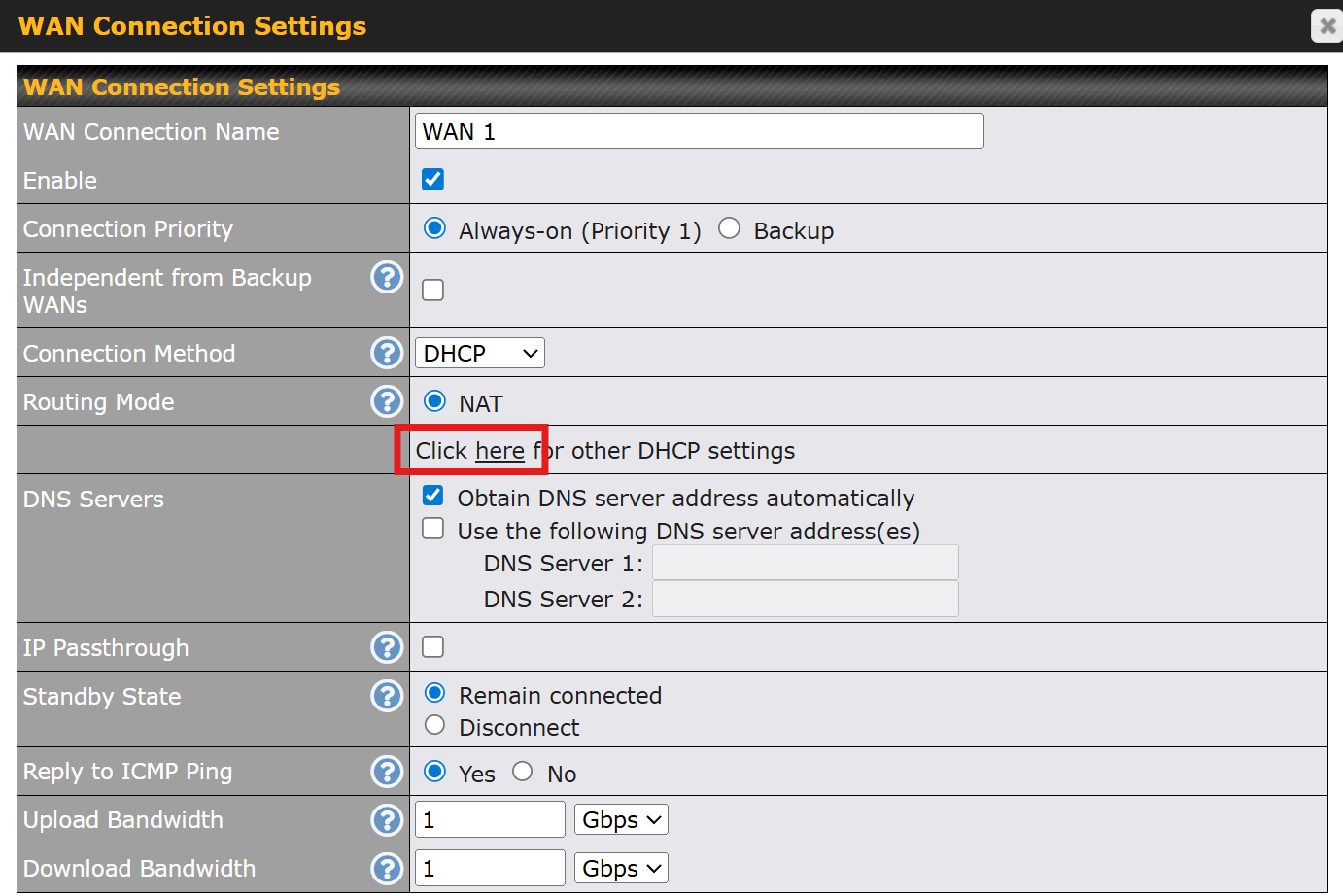
We just went through this over the past couple of weeks too. Had some units in storage or transit during the OTA update window. To locally run the update through the Peplink as a 3rd party router, it is essential to add a management IP to the WAN interface that faces the Starlink dish.
From the web admin of the Peplink, edit the WAN interface that is attached to the Starlink.
Connectivity will drop for a moment on the WAN port and then come back.
Now your mobile device should be able to reach the dish at http://192.168.100.1, because there is a route in the Peplink’s routing table. This is what the app is preprogrammed to connect to.
Run the sideload update.
Remove the MGMT IP.
Note this can also be done remotely via SF VPN. Our partner, West Networks, provided some guidance for us.
Follow the above procedure on the Peplink that is attached to the problem Starlink.
In the web admin, go the Advanced tab.
On the left nav bar, select OSPF & RIPv2
At the bottom of the screen add the custom route 192.168.100.0/24 and click +
Connect your phone to any other Peplink in the same SF VPN overlay.
Open the Starlink app as normal and run the update.
NOTE- if the subnet 192.168.100.0/24 overlaps with a subnet that is in use in your network, you will have unexpected results because of the conflicting route. In my case, the subnet is unused so there is no issue advertising it.
I hope this helps! I would love to have a feature on the router to be able to run the update for us, but I’m guessing Starlink has not opened that part of their API up.