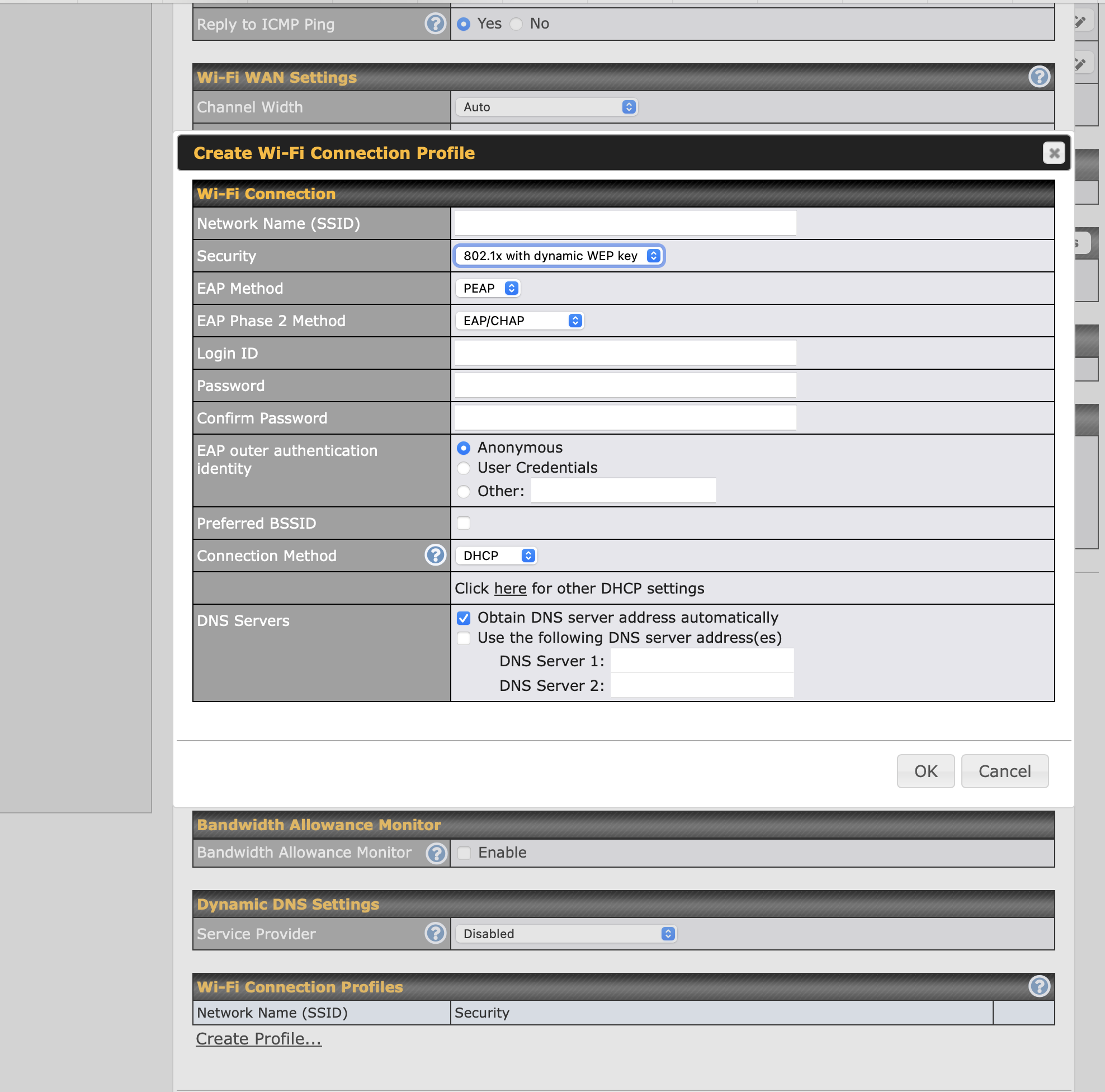
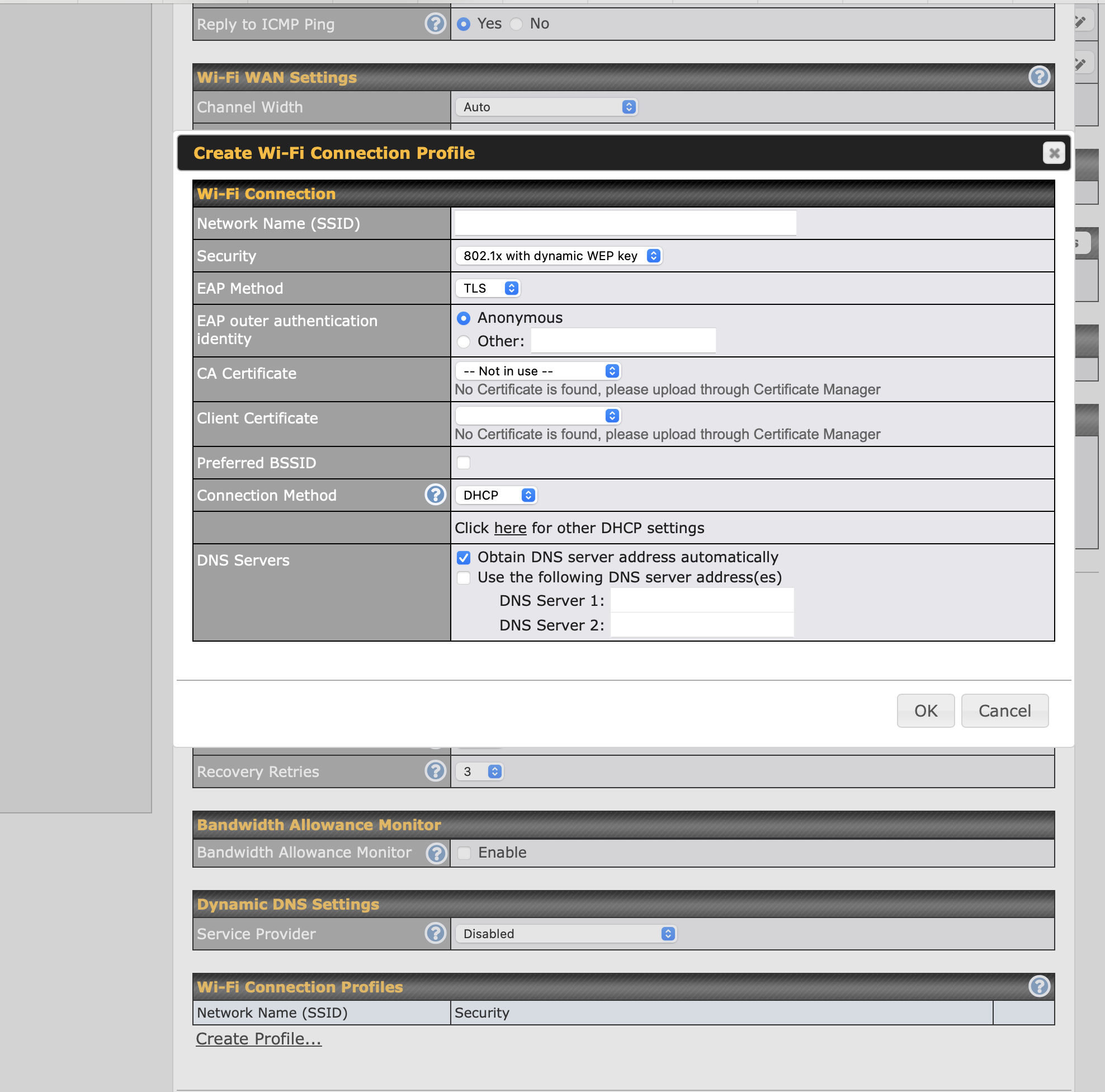
In addition to using passwords (WPA2/WPA3) for connecting to or sharing SSIDs, do Peplink routers’ WiFi-WAN or APs support PKI-based connectivity (such as X.509 certificates)?
If so, are there any relevant technical documents or guides for reference?
Yes, Peplink devices do support certificate-based authentication for WiFi connectivity, particularly through WPA2/WPA3-Enterprise (802.1X) modes.
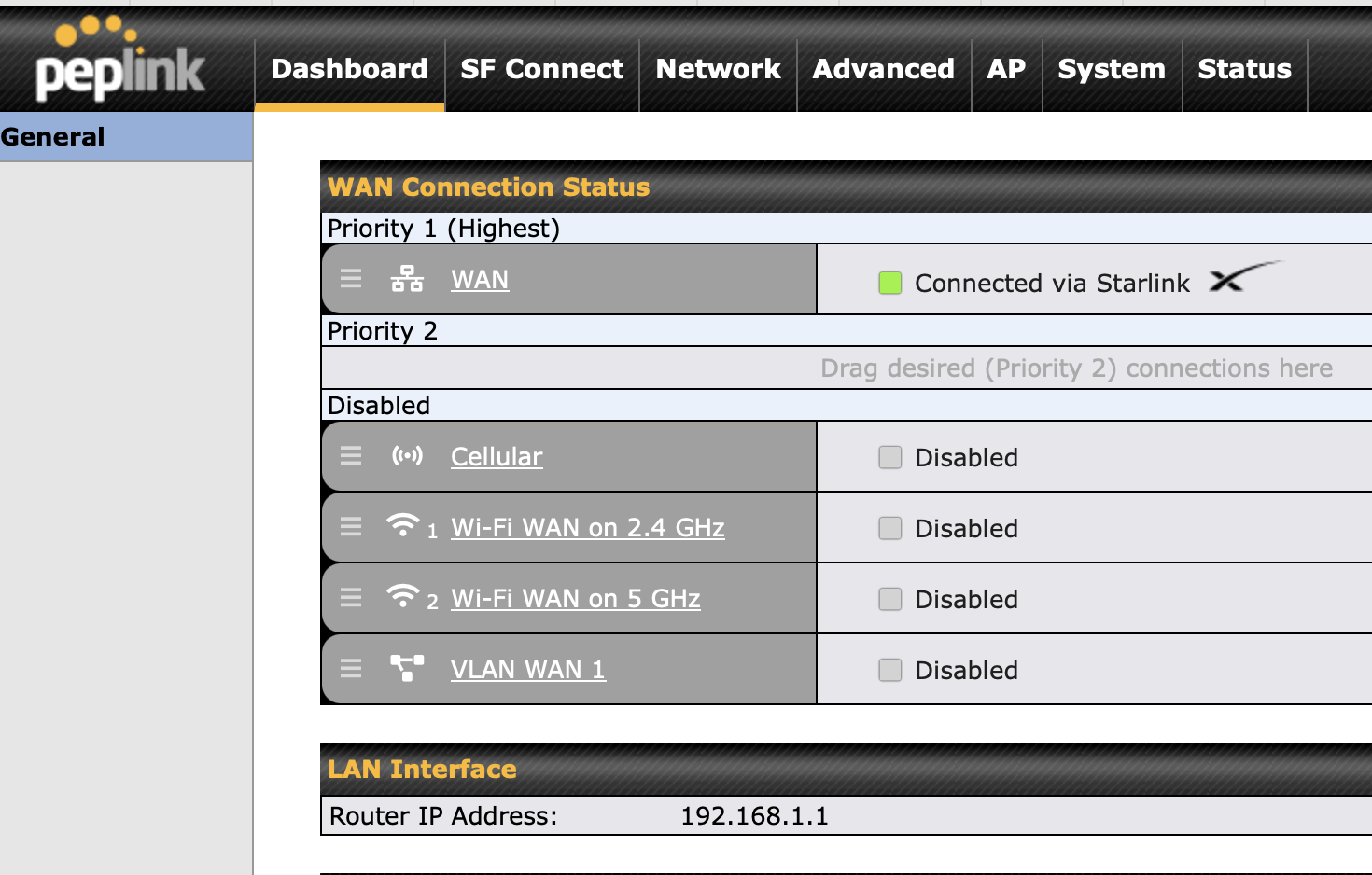
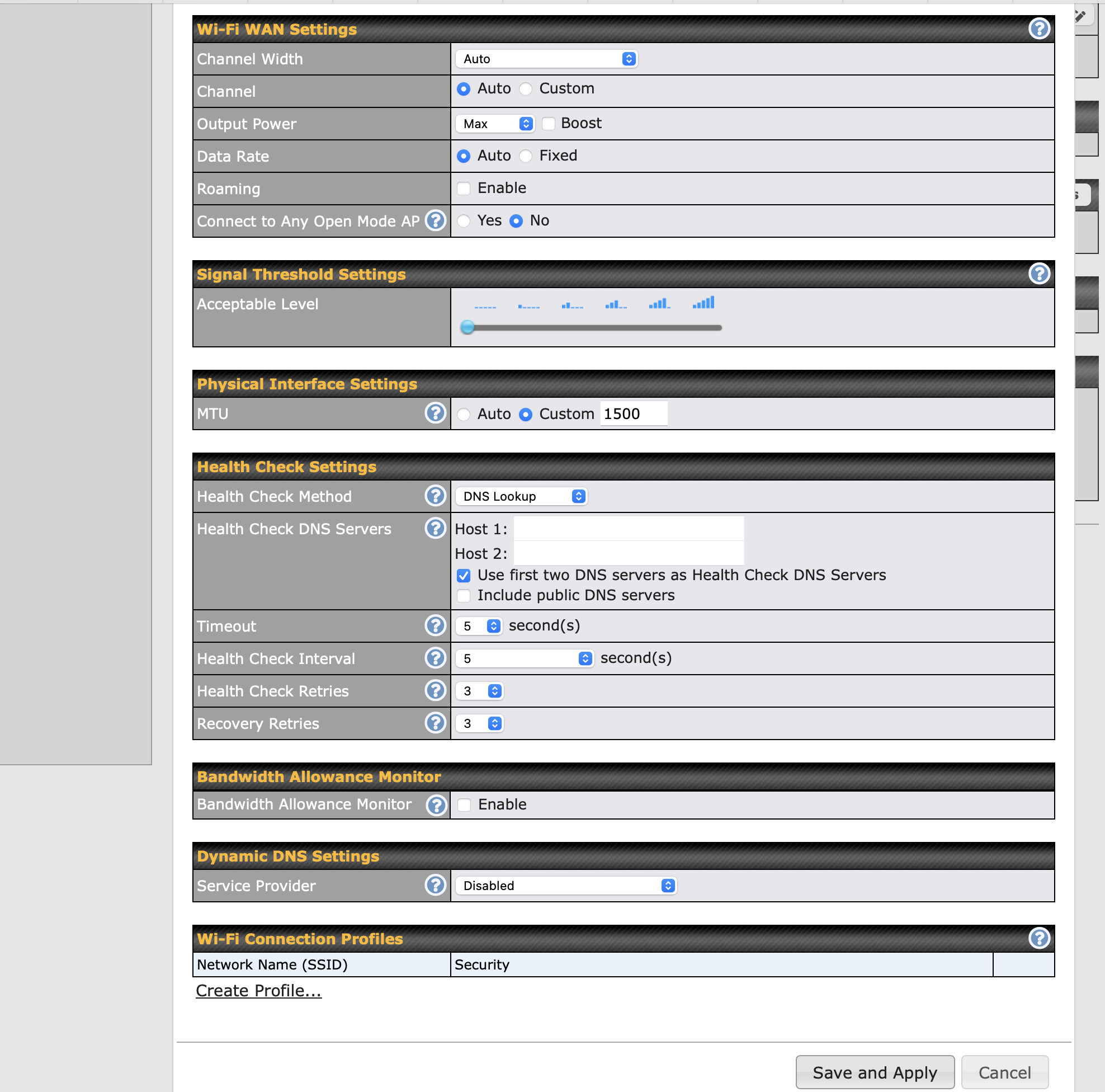
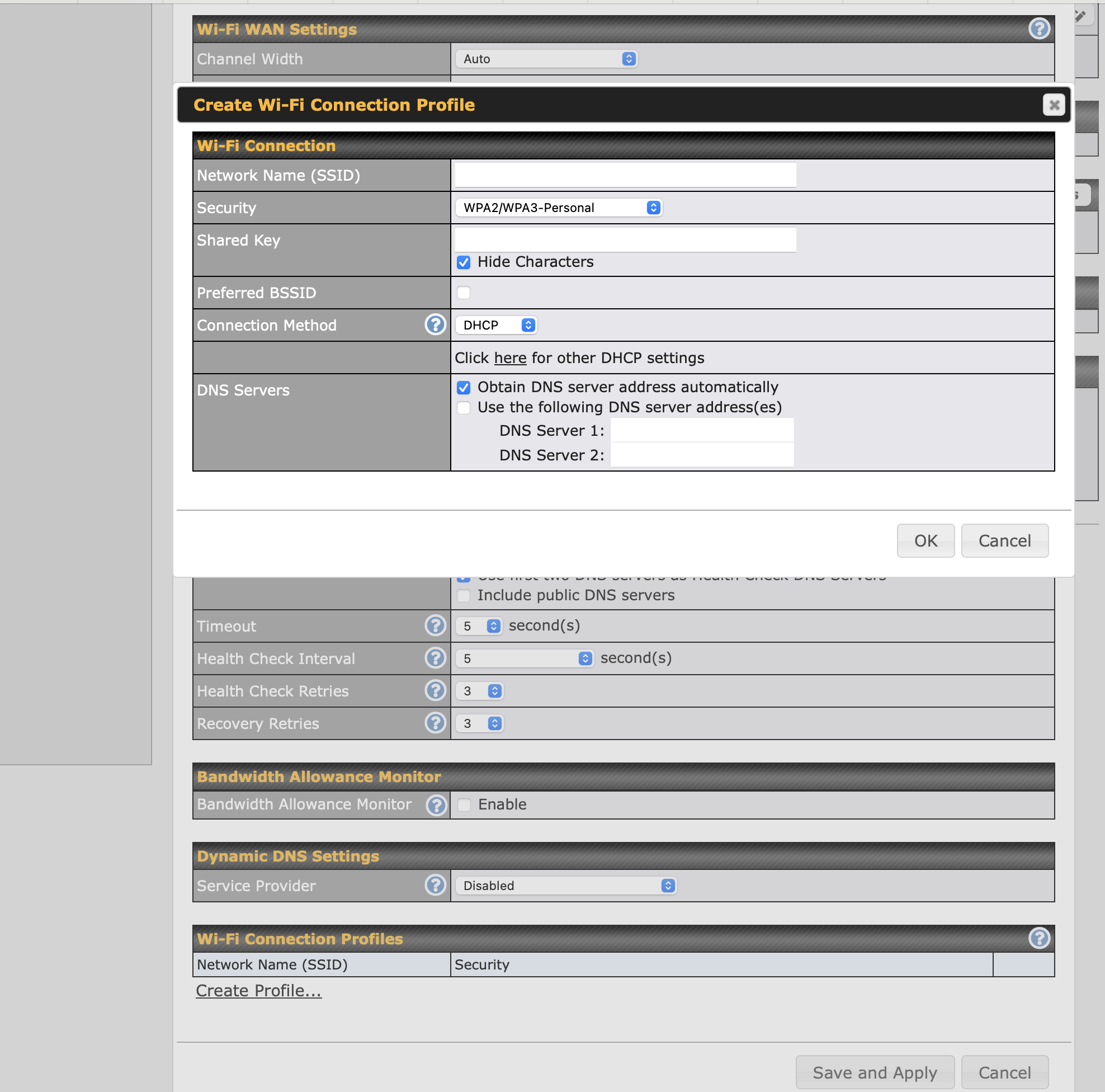
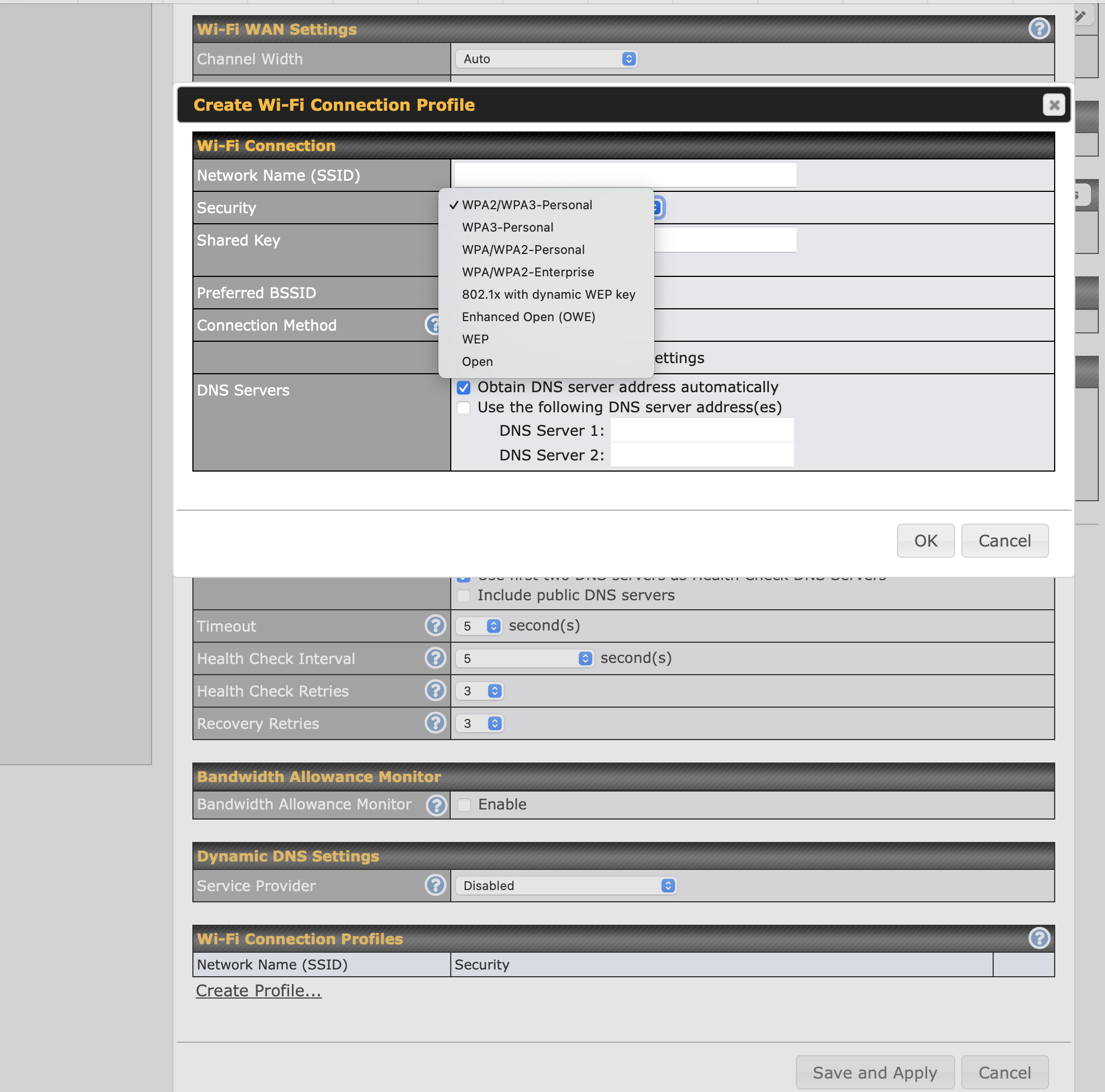
For WiFi WAN (as a client): Peplink routers can connect to enterprise WiFi networks that require certificate-based authentication. When configuring a WiFi WAN connection, you can select authentication methods including:
EAP-TLS (which uses client certificates)
PEAP-MSCHAPv2
EAP-TTLS
For EAP-TLS specifically, you’ll need to upload the client certificate, private key, and CA certificate to the device.
For Access Points (hosting SSIDs): Peplink APs and Balance/MAX routers with built-in WiFi can broadcast SSIDs using WPA2/WPA3-Enterprise with 802.1X authentication. This typically requires integration with a RADIUS server that handles the certificate validation.
The user manual for your specific device model should have a section on WiFi security settings
If you need model-specific implementation guides, you can mention the one and I can provide some steps with screenshots for a better walkthrough.
Thank you for your reply.
We will be implementing this feature on the MAX BR1 Mini.
While we have found the general WiFi-WAN and AP configuration steps in the user manual, there is limited information regarding WPA2/WPA3-Enterprise settings for WiFi-WAN.
Would you be able to provide some screenshots of the configuration for this?
Thank you.